Gaming isn’t just about playing anymore, it’s about sharing. Whether you want to show off your skills, create tutorials, or simply save your favorite gaming moments, recording gameplay has become a huge part of the experience. The good news? You don’t need expensive tools to do it. There are plenty of free game recording software options that deliver professional quality results.
In this guide, we’ll explore the best free tools for recording games on Windows, break down their features, and help you decide which one fits your needs. By the end, you’ll know exactly how to capture smooth, high-quality footage without spending a dime.
Why record Gameplay?
Before moving into the tools, let’s talk about why recording game matters:
Content Creation: Platforms like YouTube, Twitch, and TikTok thrive on gaming content. Recording lets you build a channel or share highlights with friends.
Skill Improvement: Watching your own gameplay helps you spot mistakes and improve strategies.
Memories: Some gaming moments are too good to forget — recording keeps them alive.
Community Sharing: Whether it’s a funny glitch or an epic win, sharing gameplay builds connections with other players.
What to look for in free recording Software
Not all recording tools are created equal. Here are the key factors to consider:
| Performance Impact: | Does the software slow down your game? |
| Video Quality: | Can it record in HD or 4K? |
| Ease of Use: | Is it beginner-friendly or more advanced? |
| Editing Features: | Does it include trimming, overlays, or commentary options? |
| Compatibility: | Does it work with your GPU, console, or streaming platform? |
1. Xbox Game Bar (Windows Built-In)
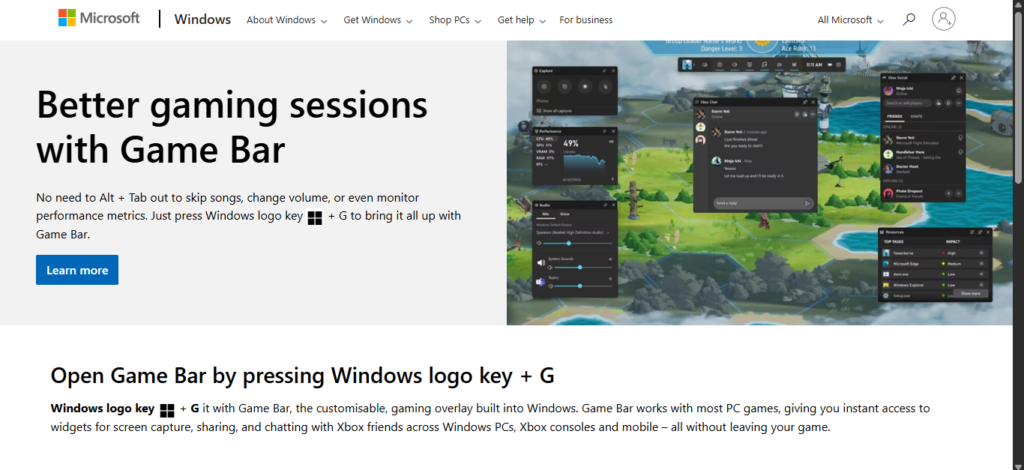
If you’re running Windows 10 or 11, you already have a free recorder: Xbox Game Bar. It’s designed for casual gamers who want quick, simple recording without extra downloads.
This program, by the way, is not a sheer recorder. The game recording is, however, a feature of it. You can regard this feature as a built-in recorder of the Xbox Game Bar. The “recorder” is designed with a clean interface. It takes up the least area on your screen and delivers the most reliable functions for you. Xbox provides users with an intuitive control bar which means there won’t be any learning curves of operation. But how do we know if this software suits game recording or not?
Features
- Records at 1080p/60 FPS.
- No watermark.
- Easy shortcut: press Win + G to open.
- Supports screenshots and performance monitoring.
Pros
- Pre-installed, no setup needed.
- Very simple interface.
- Great for short clips and casual recording.
Cons
- Limited to 4-hour recordings.
- No advanced editing tools.
- Can stutter on heavy games.
Best For
Casual PC gamers who want quick highlights without fuss.
2. Nvidia Share (ShadowPlay)
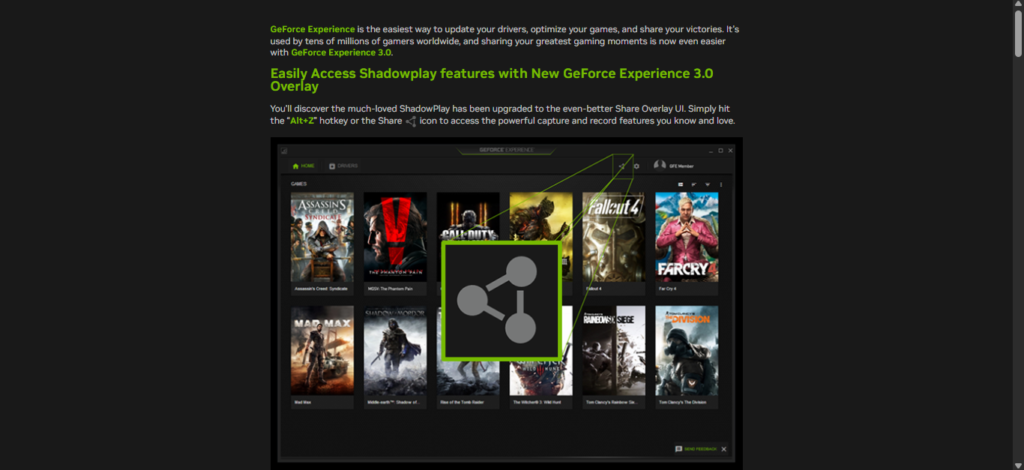
If you own an Nvidia graphics card, you get access to ShadowPlay via GeForce Experience. It’s one of the most powerful free recorders available.
As free game recording software, Nvidia manages to manually record gameplay videos for as long as users want. An excellent part of it is that It succeeds in producing videos in crisp visibility and high quality. All thanks to its capacity to record at up to 4K at 60 frames per second. What’s more, Nvidia Share is hardware accelerated, which means it has an extremely low impact on FPS and game performance in general.
Features
- Records in 4K at 60 FPS.
- Instant replay (save the last 30 seconds).
- Minimal performance impact.
- Supports live streaming to Twitch/YouTube.
Pros
- High-quality recording with almost no lag.
- Great for competitive gamers.
- Includes screenshot and GIF tools.
Cons
- Only works with Nvidia GPUs.
- Limited editing features.
- Doesn’t support OpenGL games (like Minecraft).
Best For
PC gamers with Nvidia cards who want professional-quality recording.
3. AMD Radeon ReLive
AMD users aren’t left out — Radeon ReLive is their answer to ShadowPlay. It’s built into AMD drivers and optimized for performance.
It lets users tweak their gameplay experience by configuring game and display settings. AMD ReLive is currently supported on DirectX® 9, 10 11, 12, and Vulkan® APIs and it has a minimal impact on in-game frames per second (FPS) when enabled.
As the biggest competitor of Nvidia, AMD bears quite similar features on-screen capturing and stream service.
Features
- Records up to 4K/60 FPS.
- Instant replay and streaming support.
- Works with DirectX and Vulkan games.
- Minimal system impact.
Pros
- Free for AMD GPU owners.
- Easy to use.
- Supports overlays and commentary.
Cons
- Limited advanced editing.
- Performance depends on GPU model.
Best For
AMD gamers who want smooth recording without extra software.
4. OBS Studio
OBS Studio is a magnet among all the free game recording software. It ranks at the top of the download list every year. The most rational answer for this phenomenon should be this software’s professional and free features.
In general, OBS is an open-source screen recorder packing a lot of features and settings for users to explore. If you’re willing to put in the time to learn it, this program will turn out prove its amazing versatility. The best part of OBS is its configuration options. They are large in number and too powerful to ignore. With proper settings, uses will finally have access to high-quality gameplay videos.
Features
- Records in HD and 4K.
- Unlimited recording length.
- Advanced scene setup (overlays, transitions, multiple sources).
- Direct streaming to Twitch, YouTube, Facebook.
Pros
- Extremely powerful and flexible.
- No watermarks or time limits.
- Huge community support.
Cons
- Steep learning curve.
- Can feel overwhelming for beginners.
- Requires manual setup for best results.
Best For
Streamers, content creators, and advanced users who want full control.
5. Elgato Game Capture HD
For console gamers, Elgato Game Capture HD is a popular choice. While the hardware isn’t free, the software itself is free to use once you own the device. The heart of Elgato Game Capture HD is the Capture section. When you start the software this is the first section you see, and it lets you view and record video, and also access other features like Live Commentary and Live Streaming.
Elgato Game Capture HD is the world’s first solution for making live streaming right within the software. For users who want to entertain their audience in real-time, Game Capture HD will be an instant method for it supports live streaming on a lot mainstream platforms including Twitch, YouTube, Facebook, USTREAM, Dailymotion.
Features
- Records at 1080p/60 FPS.
- Supports Xbox, PlayStation, and Nintendo consoles.
- Built-in editing tools.
- Live streaming support.
Pros
- Designed specifically for consoles.
- Easy to add commentary.
- Professional-quality output.
Cons
- Requires Elgato hardware.
- Not ideal for PC-only gamers.
Best For
Console players who want to record and stream gameplay easily.
Comparing the Options
| Software | Best For | Max Quality | Editing Tools | Ease of Use |
|---|---|---|---|---|
| Xbox Game Bar | Casual PC gamers | 1080p/60FPS | No | Very easy |
| Nvidia Share | Nvidia GPU owners | 4K/60FPS | Limited | Easy |
| AMD Radeon ReLive | AMD GPU owners | 4K/60FPS | Basic | Easy |
| OBS Studio | Streamers/advanced | 4K/60FPS | Extensive | Harder |
| Elgato Capture HD | Console gamers | 1080p/60FPS | Yes | Moderate |
Tips for better Game Recording
You can follow the following tips to improve the game recording experience. If you follow these properly, you can easily record games in pc/laptop easily without any issues.
- Use SSD storage: Faster write speeds prevent lag.
- Adjust bitrate: Higher bitrate = better quality, but larger files.
- Record at native resolution: Avoid scaling for smoother playback.
- Test before streaming: Run a short test to check audio/video sync.
- Keep background apps closed: Free up CPU/GPU resources.
Common mistakes to avoid
It does not matter which software or tools you use to record your game, but you have to avoid the following simple mistakes to enhance the recording smoothly on any device.
- Recording at too high a resolution for your hardware.
- Forgetting to check audio levels (commentary too loud or too quiet).
- Ignoring file size — uncompressed recordings can eat storage quickly.
- Not updating drivers/software, which can cause crashes.
Final Thoughts
Free game recording software has come a long way. Whether you’re a casual gamer using Xbox Game Bar, a competitive player with Nvidia ShadowPlay, or a streamer mastering OBS Studio, there’s a tool for every need. The best part? You don’t have to spend a cent to start recording high-quality gameplay today.
If you’re just starting out, go with Xbox Game Bar for simplicity. If you want professional results, OBS Studio is unbeatable. And if you’re tied to a specific GPU or console, Nvidia Share, AMD ReLive, or Elgato Capture HD will serve you well.