In this guide, we compare six AI image generators based on their features, output quality, usability, and available plans.
Some of these are models (the AI that generates the image), and some are platforms (where you access the model). Rather than trying multiple tools across different websites, I used Leonardo.ai as my testing hub for the models available there, testing the most recent version of each. Then I tested Midjourney, Recraft, and Adobe Firefly as standalone tools.
Why AI Image Generators Matter
AI image generators are important because they make creating pictures easier for everyone. You don’t need to be an artist or own a camera—just type what you want, and the AI will make it for you. This saves time, gives you more freedom to be creative, and is especially helpful for school projects like posters, presentations, or art assignments. They turn imagination into visuals in just seconds.
- Easy to use: Type your idea, and the AI makes the image.
- Saves time: No need to draw or take photos yourself.
- Creative freedom: You can make things that don’t exist in real life.
- Useful for school projects: Great for posters, presentations, and art homework.
1. Midjourney
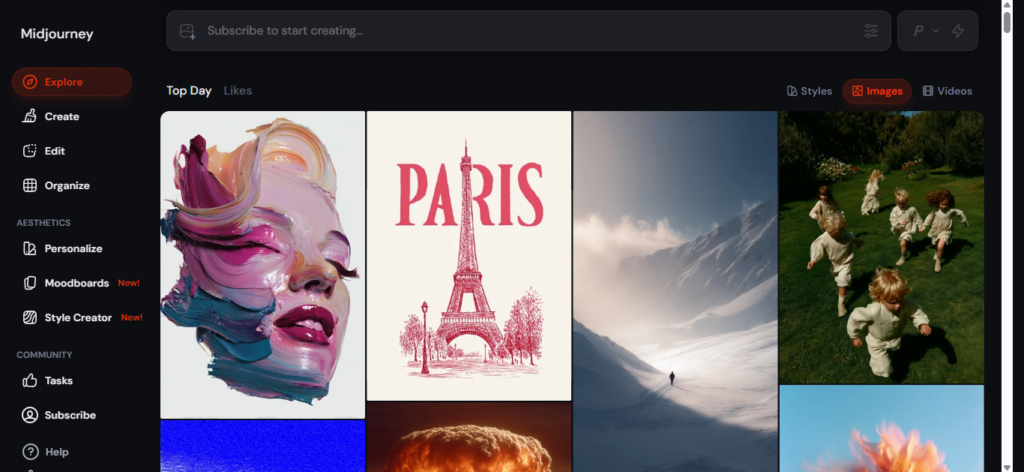
Midjourney has a reputation as the “artistic” AI image generator, and the visual richness of its outputs backs that up. The editing experience is button-based: you can vary elements to be subtle or strong, lean more creative, and even animate your results without leaving the tool.
- Best for artistic images: Midjourney is known for creating beautiful, mood-driven visuals.
- Strengths: Great for fantasy art, creative posters, and unique styles.
- Weaknesses: Struggles with spelling words correctly in images.
- Free or Paid?: Paid, but offers trial options.
2. Adobe Firefly 5
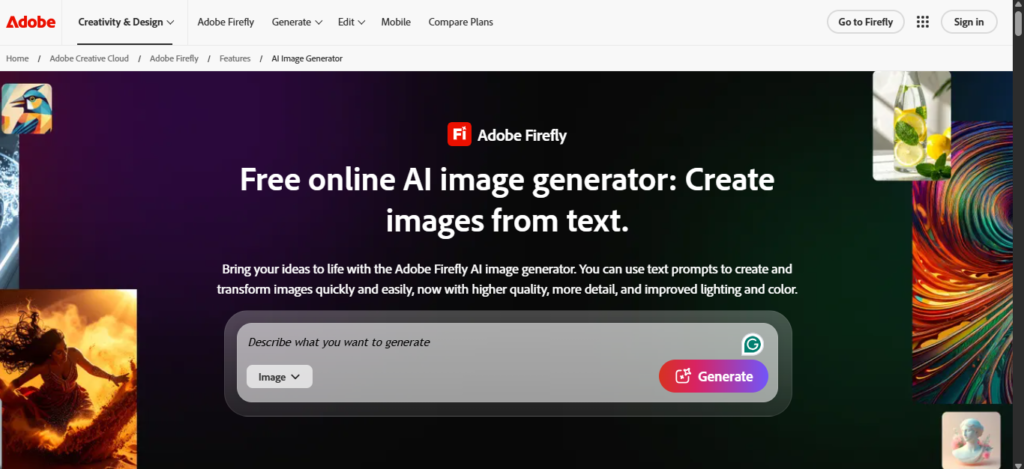
Adobe Firefly 5 is the latest image-generation model from Adobe, and its biggest selling point is its workflow integration. If you’re already in Photoshop or Illustrator, you can generate an image and move it straight into your editing workspace. Adobe has also been vocal about training Firefly on licensed and public-domain content, which means you get cleaner commercial-use rights than most competitors.
I don’t use Photoshop or Illustrator in my day-to-day, but if they’re part of your workflow, the direct handoff alone might make Firefly worth trying.
- Best for students using Adobe tools: Works directly with Photoshop and Illustrator.
- Strengths: Clean images, good for school projects and commercial use.
- Weaknesses: Avoids brand names (like iPhone or Instagram) due to copyright rules.
- Free or Paid?: Free with Adobe Creative Cloud, paid for full features.
3. Recraft V4 Pro
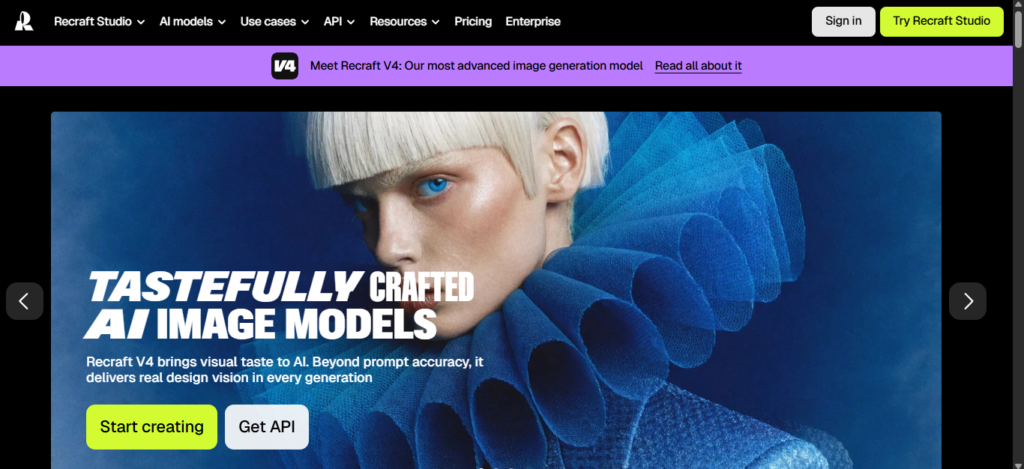
Recraft is another tool I tested as a standalone platform. It has a massive library of existing designs from real designers that you can use as reference images. You can assign a color palette, select from a wide range of visual styles, and work with its agentic chat to refine your images through conversation rather than re-prompting from scratch.
If you’re not tied to Canva for your design workflow, Recraft is a genuinely solid all-in-one option. The ability to pull from its existing design library as reference images could save you a lot of back-and-forth if you already have a visual direction in mind.
- Best for design control: Lets you choose colors, styles, and even reference images.
- Strengths: Great for posters, logos, and creative school designs.
- Weaknesses: Sometimes ignores small details in prompts.
- Free or Paid?: Offers free version, paid for advanced features.
4. GPT Image 1.5
GPT Image 1.5 :People already using ChatGPT who want quick image generation without switching tools. For more control, access the same model via an all-in-one image generator tool such as Leonardo.ai or Recraft.
If you’ve used image generation inside ChatGPT recently, you’ve likely used a version of this model. I tested GPT Image 1.5 inside Leonardo.ai, the first of the models on this list where I did this. You can dig deeper into style selection (illustration, photography, etc.), adjust quality settings, and control image dimensions. The model itself is the same underlying technology, but tools like Leonardo give you more knobs to turn.
- Best for quick images inside ChatGPT: Easy to use without switching apps.
- Strengths: Follows prompts closely, good for simple graphics.
- Weaknesses: Sometimes looks too “AI-made” and less natural.
- Free or Paid?: Free with ChatGPT Plus, paid for higher quality.
5. Nano Banana 2
Nano Banana 2 is a Google model, and I have a theory about why it outperformed several competitors: Google has the search engine. It has image search, Google Shopping, and years of indexed visual data. When I asked for a “Diptyque Orphéon” perfume bottle or “chunky trail running sneakers from Salomon,” Nano Banana seemed to actually know what those things look like. Other tools freestyled the details. This one got the closest to reality.
- Best overall accuracy: Made by Google, it understands real-world objects well.
- Strengths: Great for illustrations, photorealism, and even text.
- Weaknesses: Sometimes adds extra objects you didn’t ask for.
- Free or Paid?: Free limited use, paid for full access.
6. Seedream
Seedream is for creators who need reliable text generation in their images and access within CapCut.
Seedream is ByteDance’s image generation model, and bonus: you can use it if you have CapCut Pro. It had some interesting strengths and some familiar weaknesses.
- Best for text in images: Created by ByteDance, works well with CapCut.
- Strengths: Spells words correctly, good for posters and school banners.
- Weaknesses: Sometimes makes objects look strange.
- Free or Paid?: Free with CapCut Pro, paid for advanced features.
Tips for Writing Good Prompts
When you use an AI image generator, the way you write your prompt (your instructions) matters a lot. A good prompt helps the AI understand exactly what you want, while a weak prompt can make the image look strange or confusing. Think of it like giving directions to a friend—if you explain clearly, they will know what to do. Below are some easy tips that anyone, even school students, can follow to get better results.
- Start with the subject: Always begin by saying the main thing you want in the picture. For example, if you want a cat sitting on a chair, write “A cat sitting on a chair.” This tells the AI the most important part of your image right away.
- Add details: After the subject, you can add extra information like colors, lighting, or style. For example, “A cat sitting on a chair in cartoon style, with bright colors.” These details help the AI make the image closer to your vision.
- Use simple words: AI understands everyday language better than complicated codes or technical terms. Instead of writing “feline on a wooden seat,” just say “cat on a chair.” Simple words make the results clearer and faster.
- Say what you don’t want: Sometimes the AI adds things you don’t need, like text or watermarks. You can prevent this by writing “no text” or “no watermark” in your prompt. This helps the AI avoid mistakes and keeps your image clean.
By following these steps, you can guide the AI more effectively. Think of it like giving step-by-step instructions: first the main subject, then the details, then keeping the language simple, and finally telling the AI what to avoid. With practice, your prompts will become stronger, and the images you get will look much closer to what you imagined.
Risks and Things to Know
AI image generators are amazing, but they are not perfect. Sometimes the pictures they make can look a little strange or unrealistic. It’s also important to know that while you can use AI images freely, they are not legally copyrightable yet. And for school projects, you should always check with your teacher first to make sure using AI images is allowed.
- Not perfect: Some AI pictures may look odd or unrealistic.
- Copyright issues: You can use them, but they don’t have legal copyright protection yet.
- School use: Always ask teachers if AI images are okay for assignments.
Conclusion
AI image generators in 2026 are like magic tools for creativity. They let anyone, even school students, turn simple words into pictures without needing to be a professional artist. Whether you want to make a colorful poster for class, a realistic photo for a project, or a fun cartoon for your friends, these tools can do it quickly. They save time and make learning more exciting because you can show your ideas in a visual way instead of just writing them down.
For students, these AI tools are especially helpful. Imagine working on a science project and needing a picture of a planet, or designing a banner for a school event. Instead of searching for hours online or trying to draw it yourself, you can just type a description and get a ready-made image.
For creators outside of school, AI image generators open new doors to imagination. Artists, designers, and even small business owners can use them to make logos, ads, or social media posts without spending a lot of money.