Many Roblox players want to change their account region for several of reasons. There many be the different valid reasons for instance Want to fix the problems with current region, want to play games only available in other regions or countries or want to connect with the different Roblox servers.
In this blog i will guide you how to update your Roblox account location. The process is simple which works for all types of players on PC, mobile devices like iOS, Android and Tablets. I will also show you how you can contact Roblox support.
Why change your Roblox region?
By changing the Roblox region you can unlock a new way to experience the platform. Players can customize the setting for a specific benefits they want. Here are some of the main valid reasons that player decide to change the region in Roblox.
Accessing region locked games and features
There are some of the Roblox features and games which only available for specific region or location. Game devs release content only to the certain countries or region. If the game that you want to play is not available in your current location you can change region to access it. This allows to bypass these and play the games that were previously out of reach. This also includes to all special events or promotions related to specific geo or location.
Fixing region related issues
Due to the region settings you can face some problems while playing games. This can be lag when playing with friends in a different country or any other issues. It also be a issue not seeing local payment options or stores. By changing the region in Roblox can fix these kinds of issue which can improve your overall gaming experience by connecting you to more servers.
Changing language and server locations
Due to the region settings you can face some problems while playing games. This can be lag when playing with friends in a different country or any other issues. It also be a issue not seeing local payment options or stores. By changing the region in Roblox can fix these kinds of issue which can improve your overall gaming experience by connecting you to more servers.
What is Roblox account location?
Roblox stores account location for each user because it helps to improve the experience on the platform. It can affect in many things like the language you used and the games recommended to you. This is the settings that you can’t change it with just a few simple clicks in your profile. Roblox takes your location seriously to prevent misuse and fraud so you have to follow the specific process that has direct request to their support team.
The account location is different from your devices IP address while your IP address show your current physical location. Your location in Roblox account is the setting in their system. This is the main element which determine what content or services are available to you. This is important that Roblox want to know the valid reason before changing the region. Their main aim is to protect user account and keep he platform safe and fair for every player.
How to change Roblox region?
If you want to legally change your Roblox account region you need to reach out to their customer support team. There is no direct settings or option to change this yourself. Here is the step by step method to change region in Roblox by contacting support.
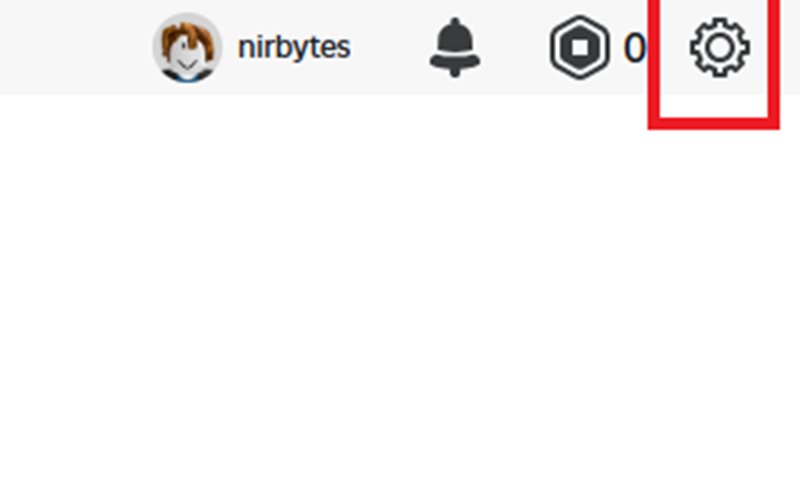
Step 1: Accessing Roblox Settings
First, open your Roblox application or website.
On PC or Mac: Look for the gear icon in the top right corner. This is your settings menu. Click on it.
On Mobile (iOS or Android): Tap the three dots (More) icon, then find the gear icon for settings. Once you click this, a new menu will appear.
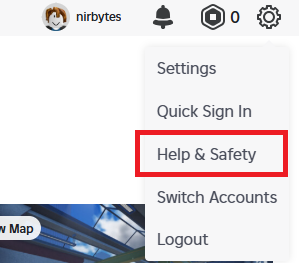
Step 2: Go to Help and Safety
In the settings menu, you will see several options. Find for the “Help and Safety” section. Click on this to proceed. This area contains settings and tools to users with various issues. This is the gateway to the Roblox Help Center.
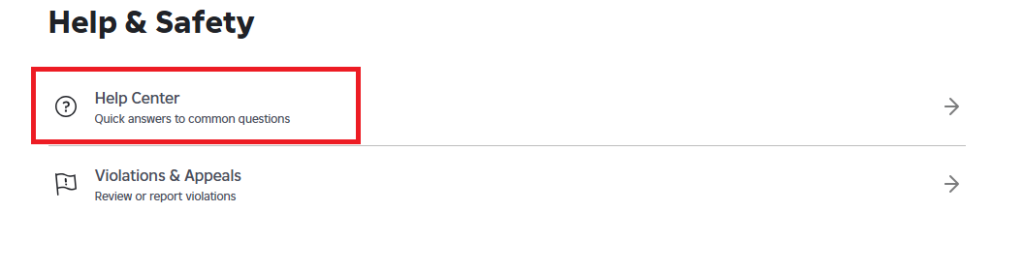
Step 3: Find the Help Center
After clicking “Help and Safety”, you will be taken to a page with more options. One of these options will be “Help Center”, click on “Help Center” to open a new browser tab or window. This will take you to the official Roblox support website. This website has many articles and FAQs and It also provides a link to contact their support team.
Step 4: Search for Account Location
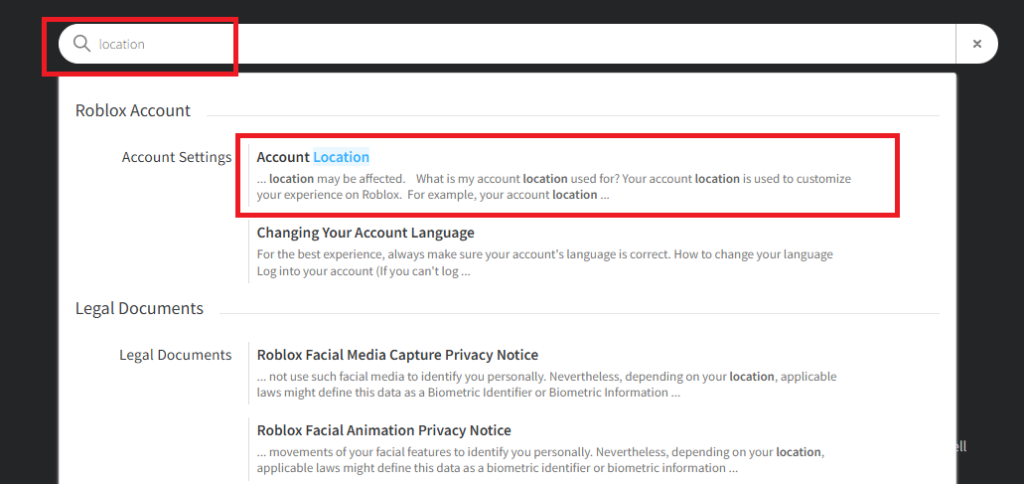
Once you are on the Roblox Help Center page, you need to find the right topic. There is a search bar at the top of the page. Type “location” into this search bar. Press Enter or click the search icon. This will show you articles related to your account location settings. Click the first search result Account Location to go to account location change page. You might see an result titled “Account Location” or something similar.
Step 5: Locating the Support Form
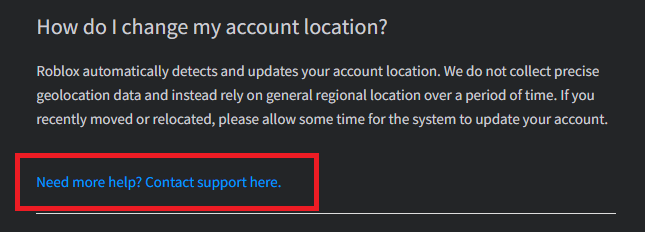
After reading the relevant article now you have to find the support form which often found at the bottom the help articles. Scroll down to the bottom and find “Contact support here”. Now after you find out the contact support form link you need to click or follow that link to open the Contact Support form. This is the form where you can submit request to change your account location.
Step 6: Filling out the Support Form
The support form requires some major information to help Roblox team understand what you want to do. Fill out all field carefully to avoid any mistakes or delays from support team.
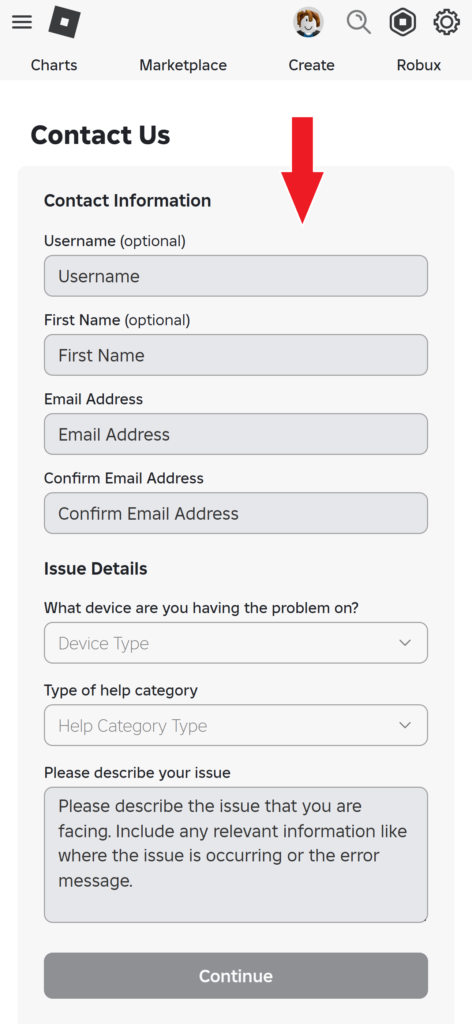
Enter contact information- You will need to enter your personal details:
Username: Type your Roblox username exactly as it appears on your profile. This helps Roblox to find your account.
First Name: Enter your first name.
Email Address: Provide an email address that you can easily access. Roblox will use this to communicate with you about your request. Make sure it is an active email account.
Confirm Email Address: Type your email address again to confirm it is correct.
Choose Your Device- Select the device you are primarily using or on which you want to make a change. You can find a dropdown menu to choose your device.
PC: Choose “PC” if you play on a desktop or laptop computer.
Mobile: Select “Mobile” if you play on an iPhone, iPad, or Android phone/tablet.
Tablet: There might be a specific option for “Tablet” depending on the form. If not, tablets will also be included in Mobile.
Selecting the Category: Next you have to choose the right category for your issue. This helps Roblox team send your request to correct team. Look for the options that is related to “Location”. You can find different options like “Billing & Payments”, “Technical Support” or “Account Security”. Since you want to change location so find the category related to account settings or search for “location” in dropdown or choose “my account”.
Specifying the Subcategory: After picking the main category you now have to select the subcategory for this issue. This will clarify your issue more. Look for “Change my location” or similar subcategory. This is very important step to make sure that your request is handled by a correct support team or team related to location. if you can’t find direct “Change my location” you can use closest option like “account settings” or “other”.
Step 7: Describing your Issue
This is the main part where you can explain why you like to change your region. Here make sure to put a clear and direct to the point explanation of your requirements.
For example you can put: “I am requesting to change my Roblox account location. I have recently moved to United Kingdom and my current location does not reflect my new location. This change will help me to access local content and connect to better servers. Thank you for your assistance”.
You can also explain more other issues like if you are having issues like region locked games or payment related problems. The more details you provide the easier it is for Roblox support team to assist you.
Step 8: Submit your Request
Once you have filled out all the necessary information in final review everything to ensure its correct. Check for any typos in your username or email address and other fields. Check if the entered description is clear or not. Now after all good click the “Submit” button. When you press submit Roblox will send you an email confirming they received your request. They usually give you a support ticket number, so save the ticket/ref number for further follow up.
Step 9: Wait for Roblox’s response
After you submit your form it will take some time to review your request by the Roblox support team. Response time may vary depending on how many request they are receiving from the contact form. They will typically communicate with you via email address you provided. Further they may ask you for more information or confirm the change of location. Once Roblox process your request they will update your provided account location to a new location.
What to expect after changing your region
If your request to change region approved you can find some changes or difference. These change targets to improve your Roblox experience based on your new updated location.
From now you can able to see and play the games that were previously blocked in your old region. This is one of the main reason that players change their location. Check and find the games that you are interested in but couldn’t access before changing location. You can also find new items in the Avatar shop or special events notifications.
If you connect to the closer servers to the new region it improve the game performance. This means less lag and smoother playing experience when you are playing with friends. It will also be easier by connecting to the friends region or server.
The default language settings on Roblox will adjust to match your new region. Similarly, any in-game purchases or Robux prices might display in the local currency. This makes transactions clearer and more convenient.
Important Considerations
Always remember that changing your region too often is not recommended, before you change make sure you have a valid reason for it. Roblox can ask for proof of your new location, specially if they have some doubt about your request. Always be honest in your communication with their support team. For more helpful tips on Roblox and other tech topics you can explore this site.
Conclusion
In conclusion by changing your Roblox account region it can solve various problems and unlock new experiences. There is not a straight or direct option that you can change it by yourself so contacting Roblox support to change your account location is explained. By following the steps mentioned in this guide you can easily update your location.
Always remember to provide a clear and valid information in your support request. You need to be patient while Roblox processes your request to change location. Once your request is approved and region updated you can enjoy all the benefits that come with your new account location. This includes accessing new games, better server connection and more relevant content on the Roblox platform.