
If you are annoyed with the slow performance of Safari browser in your iPhone. You may notice slow page loading and want to speed this up. Ok so you can easily clear search history to make it light. Your search history and browsing history are the datas what you have visited by using safari. Your privacy matters so regular cleanups fix that, boosting speed and keeping your information safe. Its very easy to clear all your browsing history from safari on iPhone.
In this guide i will guide you every step to clear all the Safari search/browsing history. You will learn why it matters, how to do, and some tips to stay on top of it. No complex in just few taps you can clear it.
What data Safari include?
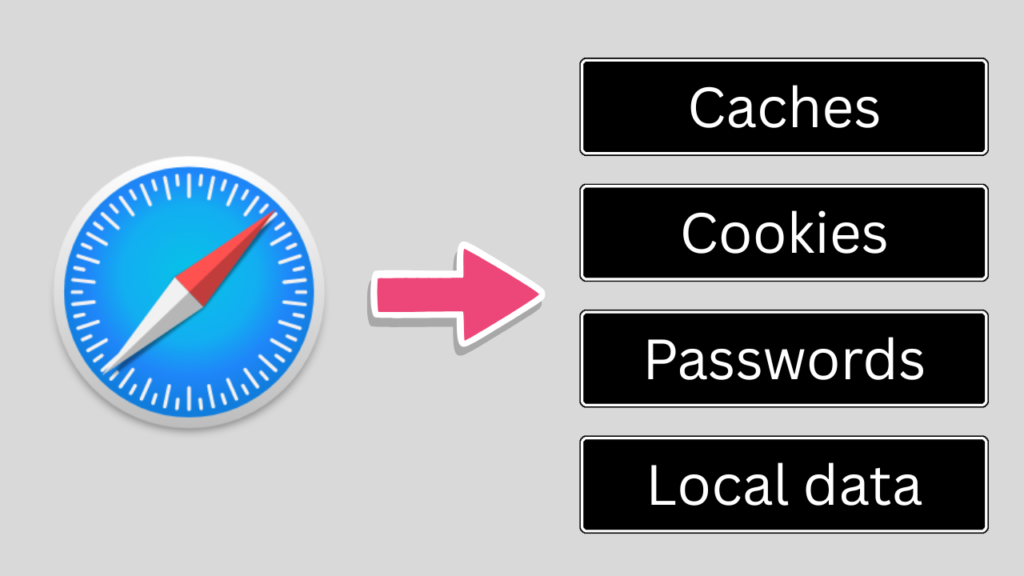
Safari stores a bunch of information’s as you browse the web using Safari app. The stored data and caches help for faster webpage loading. If you understand what it stores you can decide what to delete without losing any key logins.
Let’s think about its like a messy backpack. History tracks what you visit, cache grab images for speed and cookies remember the site details. Clearing all these resets your browser to a fresh start. This process aims everything from the old searches and to hidden Safari trackers.
Difference between History, Cache, and Cookies

History: History lists the sites you visited, like a diary of your web trips. It includes URLs and timestamps making it easy to revisit site but risky if someone got your phone.
Cache: Cache holds temporary files, such as pictures and scripts, so pages reload quicker next time. Without it, sites might feel slower at first, but your storage frees up.
Cookies: Cookies save small bits of data, like login info or shopping carts. They track your habits too, which some sites use for ads. Deleting them logs you out but it stops unwanted tracking.
The impact of unmanaged website data
Old website datas in your browser occupy iPhone’s storage space. Over time it makes Safari lag mainly on the device with less Random Access Memory (RAM). One of the past study from Apple shows that clearing the cache standalone can speed up webpage load times by 20%.
The old unused files and caches drains battery due to browser overload. If you browser a lots of websites this adds up caches quick. So clearing website data help to keep your iPhone runs like new.
Privacy & Security concern
If you don’t clear search history it leaves a trace of your interests. Sites and apps can use the history to profile you and serve targeted ads. In 2023 reports shows over 70% of users worried about the data leaks from browsers history and data.
Old websites data should include site permissions for your location, camera or physical hardware. By clearing the history it helps to get rid of the trackers on it. Its like locking your digital door after guests left.
Navigating to Safari Setting
Its straight process or it just takes a couple of minutes to do this. in iOS 26 all the settings are same but little bit path difference from older versions. Follow these steps to navigate to right path.
Start with just simple steps to find the settings. This is helpful if are new user of iPhone.
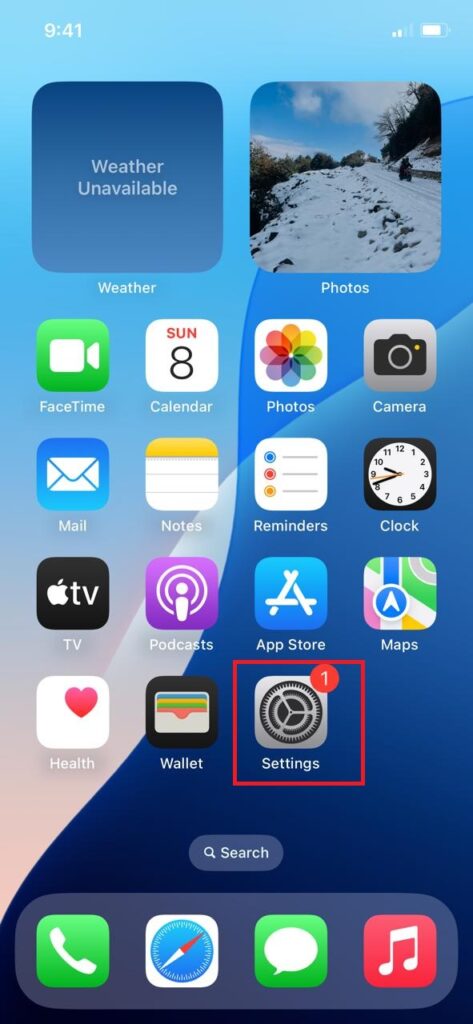
Go to Settings
Tap the gray gear icon on your home screen. That’s the Settings app, your control center for iPhone settings. It opens a list of options for you to customize.
Swipe down if it’s not showing in a home screen. And search for settings in the search bar.
Find the ‘Apps’ settings
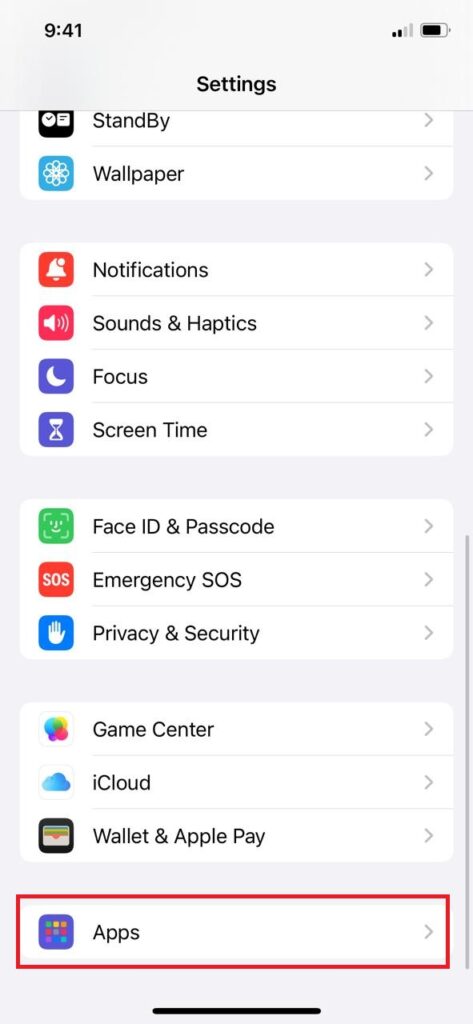
Scroll down from the top. You’ll see sections like Apple ID, General, Face Id etc. In iOS 18 and higher, look for the “Apps” option at the bottom of the settings screen.
Here you will see all the list of installed applications in your iPhone. You can scroll down to view the apps in your iPhone.
Search or find the Safari App Settings
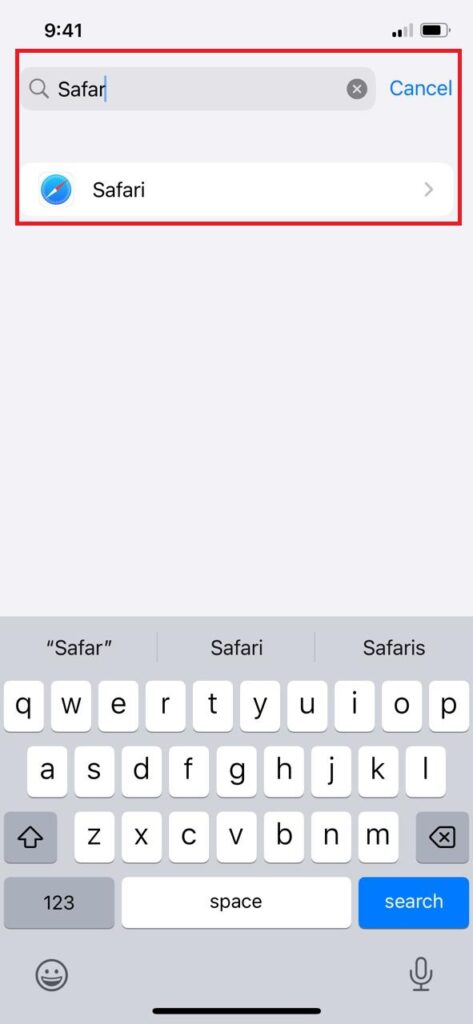
In the Apps section use the search bar at the top. Type “Safari” to jump straight to Safari settings. Or scroll alphabetically it’s under S after Photos but before.
Once you tap Safari, a new screen will apper with different safari settings options. You can customize enable/disable settings here.
How to clear history and website data?
You can find the different options to control safari among those options you can find “Clear History and Website Data”. By using this option you can clear all the history and data.
You can click the option, it will take you to new screen or a pop-up window will apper for confirmation and some options before delete.
Find Clear History and Website Data
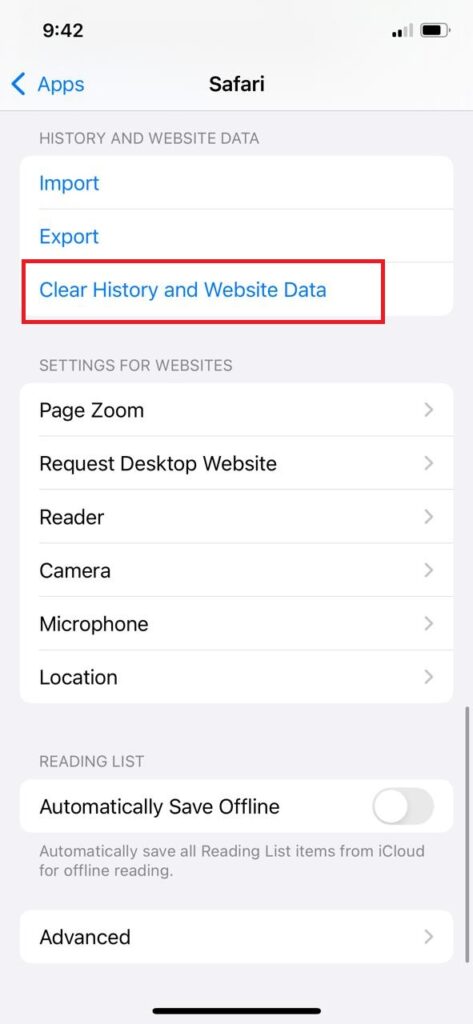
Inside Safari settings, scroll down to section History and website data. Find “Clear History and Website Data” below Import and Export options. This is the main gateway to remove all caches and web data.
It might be diffferent if you are using older models of iPhones. You should find “Remove History” or related keywords.
Select time frame
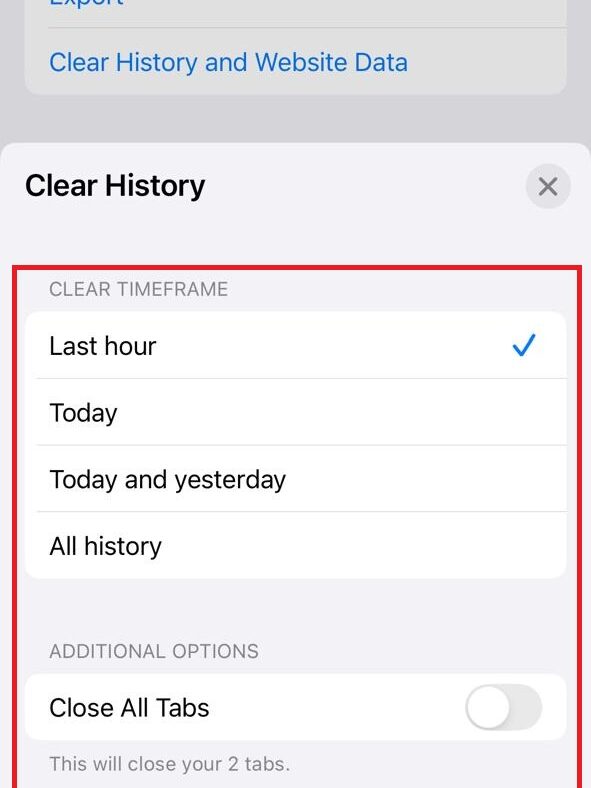
A menu slides up with choices: Last Hour, Today, Today and Yesterday or All History. Pick the last hour for quick clean up after a short browsing. Go with All History to clean everything from the start.
If you browse the news daily, Today and Yesterday keeps recent tabs clear. All-time fits for deep cleaning, like before sharing your phone. Choose time frame based on your needs.
Delete all data
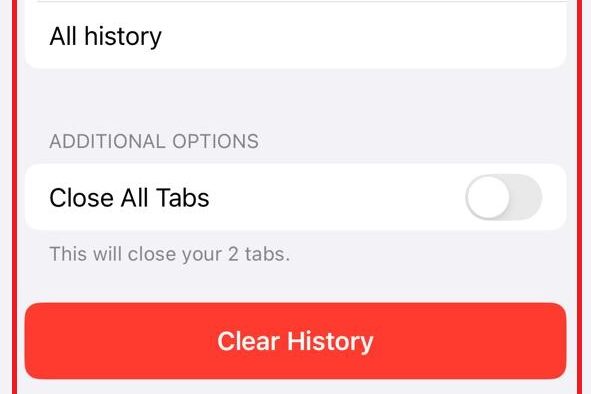
Hit the red “Clear History” button at the bottom. It asks for a second tap to confirm if you are sure. If you confirm wait a second for it to complete clean up.
Now Safari restarts fresh data like newly installed apps. You can check and test the safari by loading some webpages, from now everything feels smooth and faster than before.
Alternative Methods
The above method described in the official and full method to clean up all the Website data and history from Safari. But still there are other options you can do to remove or clean data.
You can explore the alternate methods below for clearing data. Let’s go.
Clear history without deleting data

In the same menu find for the toggle/checkbox under the Advanced section. You can uncheck website data to keep cookies. This clear your history but without deleting login data or cookies.
It clear and save your privacy without deleting the old logins and cookies. Now you are safe and don’t need to login back in your social account.
Managing individual website data (Advanced)
You can also manage Indivisual website one by one. Go to setting then Apps find for Safari and open it. Now go to advanced option and look for Website Data, from here you can manage one by one site.
This helps to clean up some specific website data without deleting the important website data that you daily visits.
Automating data removal
You can enable the “Clear data on Exit” setting in safari settings. Or you can set the option to auto-delete data after 30 days via content restrictions. Here you dont have to manually delete data every time.
This method is great and helpful for heavy users. It run background process that keeps watching and cleans data in given schedule.
Post checklist after deletion
After wiping the data, check if everything is cleaned up properly or not. Follow this for best practise to confirm data deletion.
Here are the simple things that you can check after deleting the data from Safari.
Verify if the data is cleared
Open the Safari app and tap the history icon. It’s empty now, right? Or go to private tab, nothing here. If there is nothing in the history tab, data is cleared successfully.
Now you can check for a few pages or a websites, if it loads faster and show you cookie popups its cleaned up.
Relogin into websites
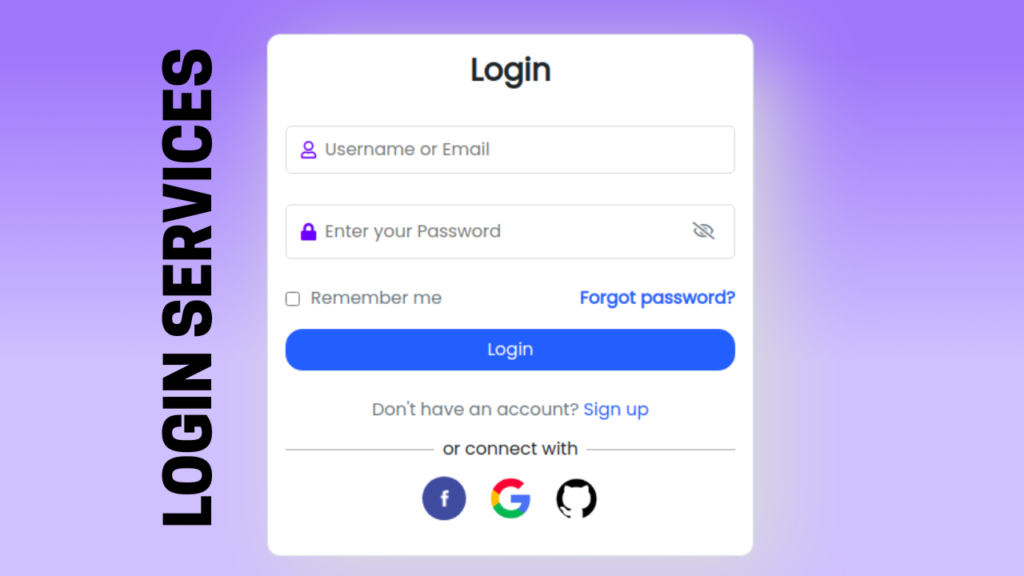
If you also cleared the cookies when clearing the history, all your social login and other logins will be removed. So now you can open those websites and relogin back with their accounts.
Its a small task for big benefits you can skip if not surfing much. If you browse lightly do monthly cleanup for website history and data, if you are a heavy user do a weekly cleanup to prevent issues. It also help you to remember your login credentials. Its like brushing teeth for long teeth health.
Conclusion
In conclusion, clearing Safari history and website data on iPhone is a simple step-by-step process in settings. It helps you to get faster web loading and secure your privacy. No more slow loading issue and privacy concerns.
In summary, you can go through the settings for apps and open targeted settings by setting the best time frame for you with advanced options to clean up all your data, history, and cookies data from Safari.
If you have followed all the methods properly as mentioned, your Safari browser will refresh like new with faster performance and quicker webpage load time. That’s crazy right hum.