
We’ve all been there: you’re in the middle of an important project, your laptop fan sounds like a jet engine, and every click feels like it takes forever to register. Whether you’re a designer, gamer, video editor, or just someone who wants a smoother everyday experience, a sluggish computer can be frustrating. The good news? You don’t always need to buy a new machine. With the right tweaks, upgrades, and habits, you can breathe new life into your PC.
This guide explores 14 proven strategies to speed up your computer in 2026, blending timeless fixes with modern solutions for today’s demanding workloads.
1. Optimize Your Power Settings
Adjusting performance settings can reduce unnecessary resource usage, while optimizing power settings can free up more resources for your tasks. Both options are available in the Windows Settings app.
Here’s how to adjust performance settings if you want to prioritize speed:
- Search “performance” in the Windows search bar at the bottom of your desktop.
- Click Adjust the appearance and performance of Windows.
- Select the Visual Effects tab, choose Adjust for best performance, and click Apply.
And these are the steps to change your power settings to prioritize performance:
- Open Settings and click on System.
- Select Power & battery and look for Power mode.
- Select Best performance from the drop-down menu.
2. Control Startup Programs
If your computer is slowest when you first power it on, disabling startup applications might be the fix you need. Disabling them by default saves you from having to dig through Task Manager to close programs every time you turn your computer on.
Good examples of programs to disable on startup include things you only use on occasion, like game launchers (Steam, etc.), messaging apps, and music players.
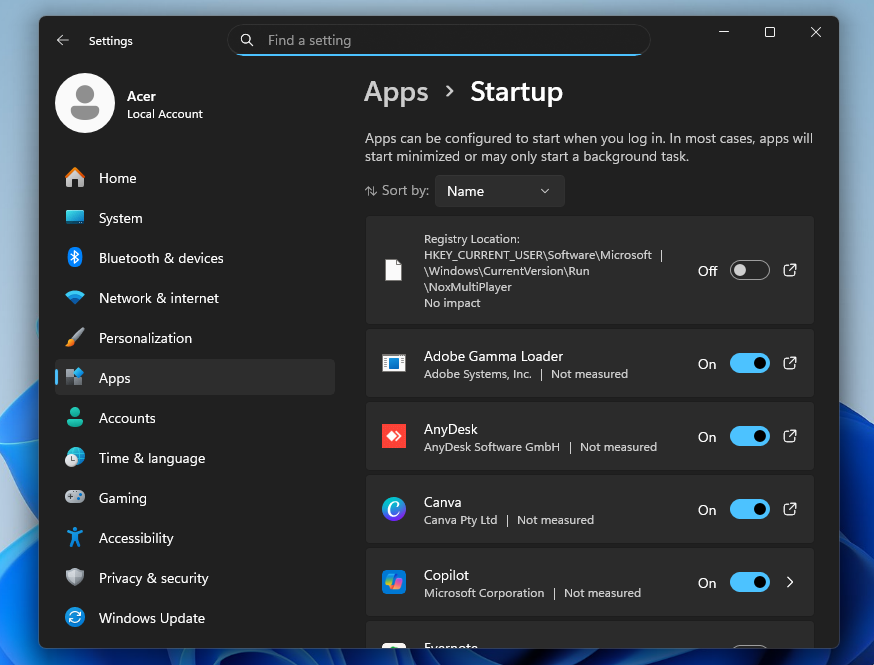
Here’s how to disable startup applications on Windows 10 or 11:
- Open Settings, select Apps, and then Startup.
- Scroll through and toggle off any apps you don’t need to run automatically.
- Restart your computer and check that programs you disabled don’t launch.
If programs you don’t recognize continue to open on startup, even after you’ve disabled them, it might be a sign that they’re malware. Some types of malware can change your startup settings to avoid being disabled. Run an antivirus scan to find out if there’s something malicious hiding on your PC.
3. Scan for Malware and Viruses
Hidden malware, adware, or viruses lurking on your computer can affect performance by consuming system resources or compromising important processes. If your computer began running slowly suddenly, with no apparent cause, it might be a sign that it’s been infected.
Stealthy malware can quietly run in the background for years. And while you might notice the impact it has on performance, hidden malware could also be stealing and transmitting your sensitive data to hackers, who may use it to take over your online accounts or commit identity theft.
The real-time protection provided by Norton AntiVirus Plus can help keep your computer safer from malware. It detects a huge range of complex threats and works to remove them so you can get your computer back to its best and protect your data. Download it today to find out why Norton is the most reputable brand in consumer cybersafety.
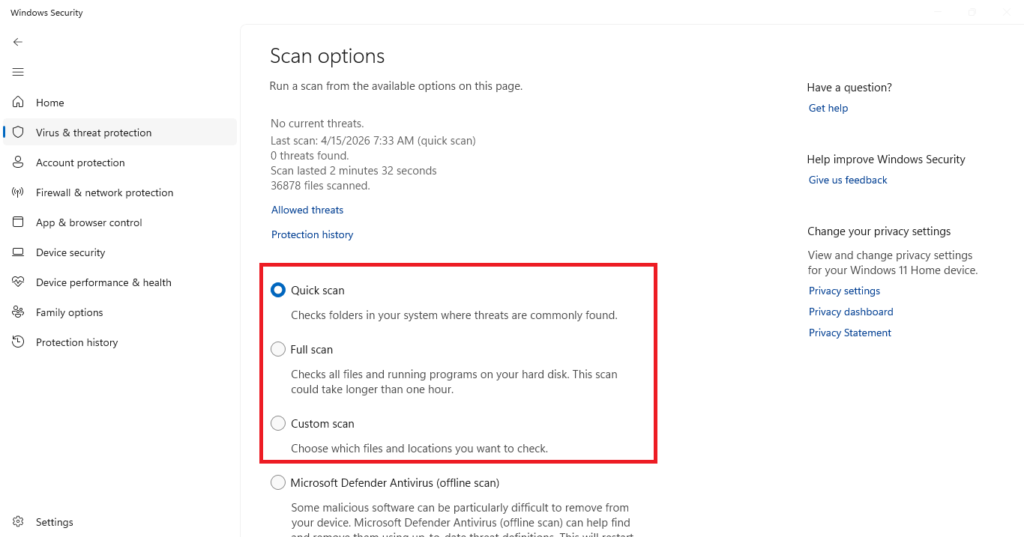
- Tools: Windows Defender, Malwarebytes, or premium antivirus solutions.
- Routine: Run a full scan weekly, and keep definitions updated. Think of it as spring cleaning for your digital house.
4. Free Up Disk Space
Deleting unnecessary files and programs reduces clutter on your computer’s storage drive, potentially boosting performance. This clutter can be made up of old files, unwanted bloatware (preinstalled programs you don’t need), and outdated versions of software.
Here’s how to uninstall unnecessary files or programs from your PC:
- Select the Start button, Settings, and then Storage.
- Choose the storage drive you want to clean (your main drive should be named C: or D:).
- Sort installed files and programs by size and browse for anything you no longer use or don’t need.
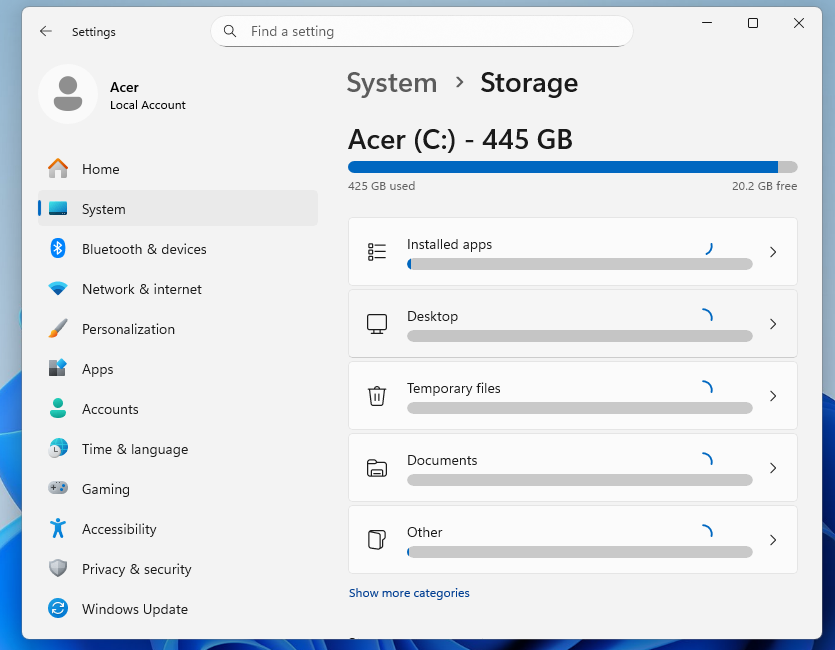
Along with deleting files manually, you can also turn on Storage Sense to schedule automatic cleanings of junk. This will help save you time clearing your Recycle Bin and removing temporary files in the future. You can enable it by opening Settings, navigating to Storage, and then toggling on Storage Sense.
5. Keep Your System Updated
Staying on top of software updates is important to ensure you always have the latest version of your programs and applications. Updates often fix bugs and improve performance, helping reduce slowdowns caused by poor optimization.
Some programs will update automatically if you launch them after a new version becomes available. Others, you may need to update manually by periodically checking the software developer’s website.
Aside from program-specific updates, upgrading your operating system to the latest version can also boost performance and security. You can check if there’s a new version of Windows available for your computer with Windows Update by following these steps:
- Click the Start button and open the Settings app.
- Go to Windows Update and click Check for updates.
- If the system says Updates are available, click them to install.
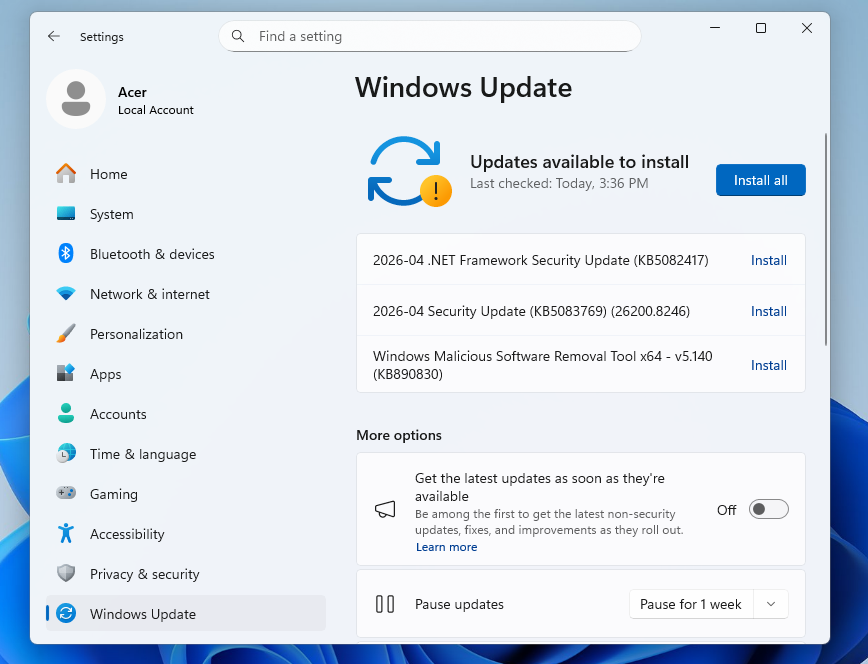
You can also check for optional updates by selecting Windows Update, Advanced options, and then Optional updates. If optional updates are available, you should see them appear.
6. Upgrade Your RAM
If you notice that you’re consistently using 100% of your RAM when you check the Performance tab in Task Manager, upgrading your RAM capacity can help tackle slowdowns. But, before purchasing new RAM, check that it’s compatible with your PC using Newegg’s Memory Finder.
7. Switch to an SSD
If you have an older, slower hard drive, an upgrade could help your performance. This could mean upgrading your older HDD to a faster SSD or finding an SSD with a faster read/write speed.
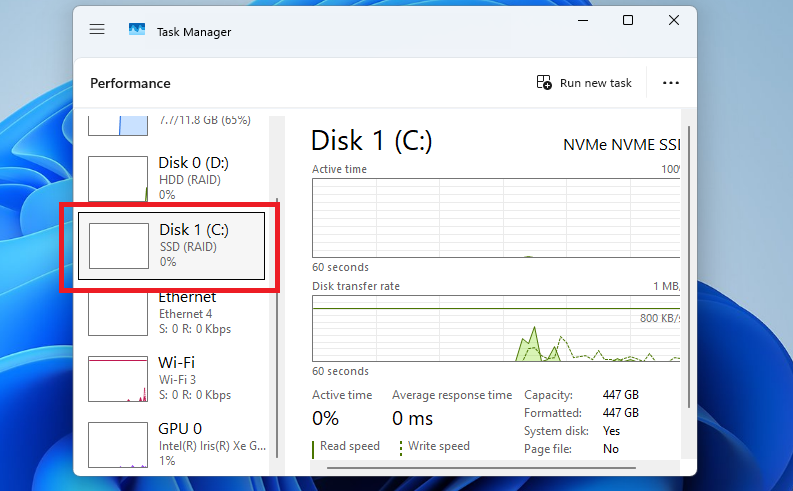
Here’s how to find out your read/write speed on Windows:
- Hold Ctrl+Alt+Del (or Ctrl+Shift+Del) to open Task Manager.
- Select the Performance tab and then your hard drive (often called “C” or “Disk 0”).
- You’ll see the live read and write speed, which you can compare with new options.
8. Disable Visual Effects
Fancy animations can make your computer look sleek and modern, but they come at a cost. Every fade, zoom, or slide effect uses system resources, which can slow things down—especially on older machines or when you’re multitasking heavily. If speed matters more than looks, dialing back these effects can give your computer a noticeable boost.
Here’s a simple way to do it:
- Step 1: Open System Properties.
- Step 2: Go to Performance Settings.
- Step 3: Select “Adjust for best performance.”
What happens next? The interface becomes leaner and faster. You’ll lose some of the eye candy—like smooth transitions and shadows—but your system will respond more quickly. Think of it like swapping a luxury car’s leather interior for a stripped-down race car setup. It may not look as polished, but it’s built for speed.
9. Uninstall Unnecessary Programs
Deleting unnecessary files and programs reduces clutter on your computer’s storage drive, potentially boosting performance. This clutter can be made up of old files, unwanted bloatware (preinstalled programs you don’t need), and outdated versions of software.
Here’s how to uninstall unnecessary files or programs from your PC:
- Select the Start button, Settings, and then Storage.
- Choose the storage drive you want to clean (your main drive should be named C: or D:).
- Sort installed files and programs by size and browse for anything you no longer use or don’t need.
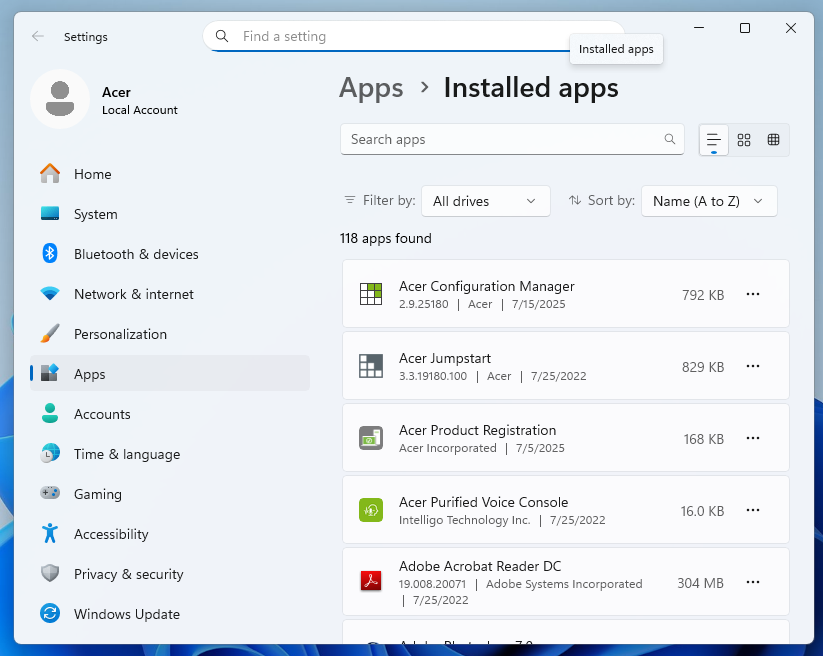
Along with deleting files manually, you can also turn on Storage Sense to schedule automatic cleanings of junk. This will help save you time clearing your Recycle Bin and removing temporary files in the future. You can enable it by opening Settings, navigating to Storage, and then toggling on Storage Sense.
10. Disable Background Services
Closing unnecessary background apps frees up system resources for other programs so they can run faster. On PCs, check the System Tray by clicking the upwards-pointing arrow in the bottom right corner of your desktop and see if there are any open programs you aren’t using.
If closing unnecessary background apps from the System Tray doesn’t help, follow these steps on your Windows 10 or 11 computer:
- Hit Ctrl+Alt+Del (or Ctrl+Shift+Del) to bring up Task Manager.
- Click the Processes tab and then either the CPU or Memory header to sort by processor or RAM usage.
- Select the process you want to end and click End task in the upper-right corner.
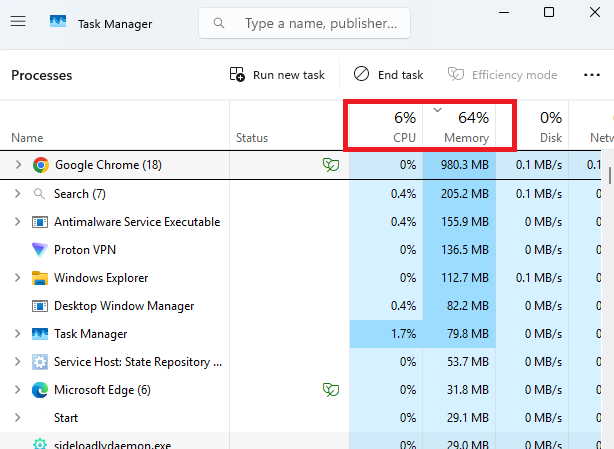
Force-stopping unnecessary programs frees up RAM and processing power, allowing your hardware to focus on running programs you’re actively using.
For extra power, consider closing any old browser tabs that are still open. Just like programs, browser tabs run background processes that can consume RAM and slow down your PC.
11. Upgrade Your Graphics Card
Updating your graphics drivers can improve system-wide performance by resolving visual bugs and improving your graphics processing unit’s (GPU) video processing efficiency. Some graphics cards come with software that automatically checks and installs updates.
However, to update your drivers manually, follow these steps:
- Open the Settings app and navigate to Update & Security.
- Go to Windows Update and then select Check for updates to scan for new driver versions.
- If any updates are found, Windows will automatically download and install them.
While using Windows Update is the easiest way to update your drivers, it won’t always find the most up-to-date versions. If you want to make sure you have the latest drivers, also try using Device Manager to find new driver versions:
- Right-click the Start menu and select Device Manager.
- Click Display drivers to expand it and right-click the graphics card option (typically labeled with a monitor icon).
- Select Update driver and then Search for drivers automatically.
If Device Manager can’t find an update that you know has been released, you can search for it on your graphics card manufacturer’s website. Here are quick links to take you to the relevant pages for three of the most popular GPU manufacturers:
12. Perform a factory reset
Factory resetting helps speed up your computer. This will revert your computer to its original factory settings, uninstalling and removing any programs you’ve installed or files you’ve created since.
It’s a relatively foolproof method of improving computer performance because it clears a lot of space on your drive, removes any third-party programs that might be impacting speed, and can even get rid of any malware that might be lurking in your storage device.
However, since it completely wipes your PC, make sure you’ve first backed up any important files you don’t want to permanently lose access to.
Here’s how to factory reset your PC:
- Open the Settings app and select Update & Security.
- Choose Recovery and then click Get started under Reset this PC.
- Choose to keep your files or remove everything.
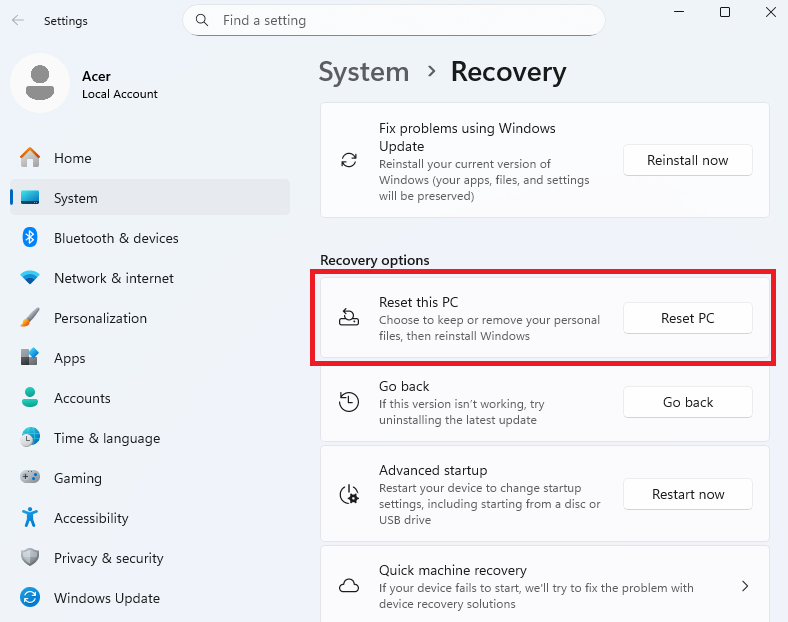
It typically takes a few hours for a factory reset to complete. When you get a notification that it’s done and you boot your computer up again, make sure to review your programs and uninstall any bloatware you’ll never use to get off to the best start.
13. Offload internal storage
Using a cloud storage service or getting an external hard drive gives you an easy way to move large files or programs from your main drive, helping declutter and speed up your PC.
Consider moving old files you don’t often use but still consider important, such as old family videos, to a OneDrive, Google Drive, or iCloud account. You can also use external or cloud storage as a backup solution, providing a lifeline if your computer suffers a black screen of death error.
14. Restore your computer
If your computer only started performing sluggishly after you installed a new program, driver, or update, that could be the cause of the problem. Using Windows Restore to revert your PC to a previous instance before that installation event can undo the changes and get your computer back to its old self.
Here’s how to use Windows Restore:
- In the search bar at the bottom of your desktop, type advanced system.
- Choose View advanced system settings and then the System Protection tab.
- Select System Restore and then Recommended restore to revert to the most recent restoration point.
Just bear in mind that restoring your system to a previous instance will also revert any changes to settings, files, or programs that you’ve made since the backup was created.
Everyday habits that make a difference
Here are some of the habits that make some difference in the performance of your Computer if you follow them regularly. Check it out.
- Restart your computer regularly to clear memory.
- Avoid working on soft surfaces (like beds) that block airflow.
- Keep your desktop uncluttered—too many icons can slow startup.
- Use lightweight apps when possible (e.g., Notepad instead of Word for quick notes).
- Schedule monthly maintenance: cleanup, updates, and scans.
Final Thoughts
Speeding up your computer isn’t only about buying new parts, it’s also about how you care for and use it. A well-maintained system can feel fresh and responsive even years down the line. Think of it like keeping a car in good shape: regular tune-ups and smart driving habits matter just as much as the engine under the hood.
Here are three areas to focus on:
- Disk cleanup: Clear out temporary files and clutter.
- Updates: Keep your operating system and apps current for better performance and security.
- Startup control: Limit how many programs launch automatically when you boot up.
- RAM: More memory helps with multitasking.
- SSD: Switching from a hard drive to a solid-state drive speeds up boot times and file access.
- GPU: If you do graphics-heavy work or gaming, a stronger graphics card makes a big difference.
- AI optimization: Use built-in tools that learn your habits and streamline performance.
- Cloud computing: Offload storage and even some processing tasks to the cloud, reducing strain on your local machine.
By combining these habits with smart upgrades, you can extend the life of your computer and keep it running smoothly. It’s less about chasing the newest hardware and more about balancing care, efficiency, and modern tools.