Want to try a different operating system, but don’t want to risk installing it on your main computer? Maybe you need to test your software on different platforms, but don’t want to configure different computers? Don’t worry. You can install VirtualBox on Windows 11 and create a guest virtual machine instead.
VirtualBox is a free virtualization program that makes setting up virtual machines on various operating systems very easy. This tutorial explains how to install VirtualBox on Windows 11 and guide the basics to get started with your first virtual machine.
Pre-checklist & requirements
This guide will show you the full tutorial how to install virtualbox before that be sure that you have following.
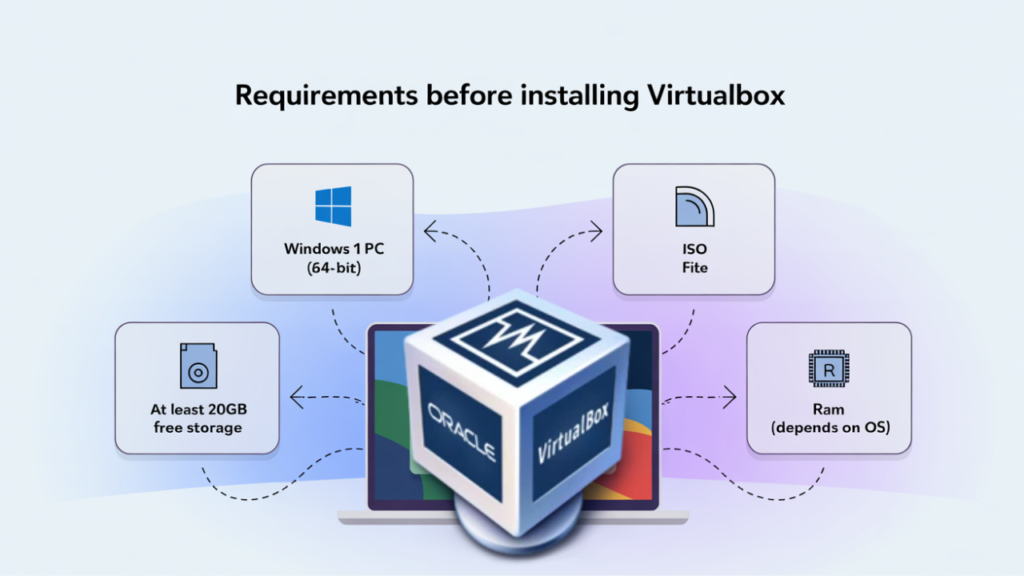
A Windows 11 PC
This tutorial will use windows 11 pc of 64bit but it work for any windows 10 or windows 11 or recent Windows system.
An ISO file
You have to at least one ISO file to test it in virtualbox. Download some windows or Linux ISO file which support VirtualBox supported guest OS.
Free Storage
Storage size depends upon on the size of the ISO file. If its large you need bigger storage. but generally there should be at least 20 GB of free space.
RAM
How much it needs depends on the OS you want to install and how you like to use it.
How to Install VirtualBox
If you want to install VirtualBox on windows 11 you need to first download the valid installation file for your host. By using installer it will be easy to follow wizard interface to install VirtualBox for everyone even if beginner.
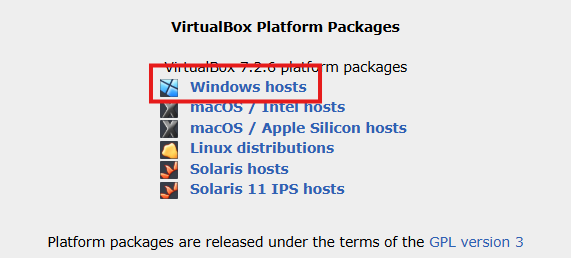
1. First open any browser and open the VirtualBox downloads page and click the windows section or link. The latest VirtualBox version as this time is 7.2.6. Download the installer in any folder you like or you can access like Downloads, Documents etc.
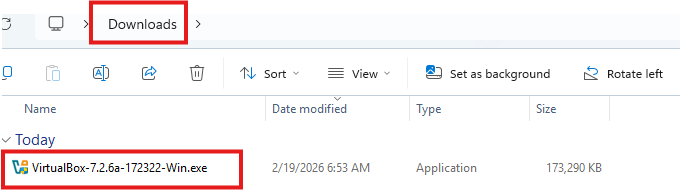
2. Now find the downloaded VirtualBox installer file using File Explorer. Double click on the file to start the Vbox setup wizard.
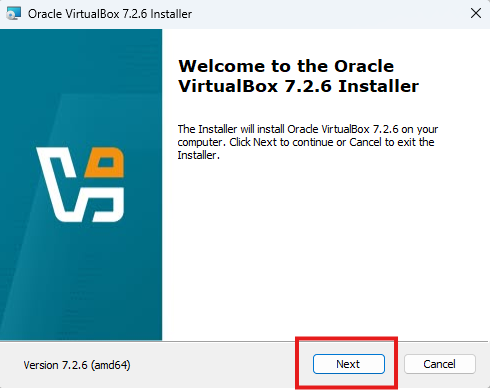
3. Now click next on the first screen, this will tell the Wizard that you want to install the VirtualBox.
4. From here you have to accept the license agreement and click on Accept button to proceed to next.
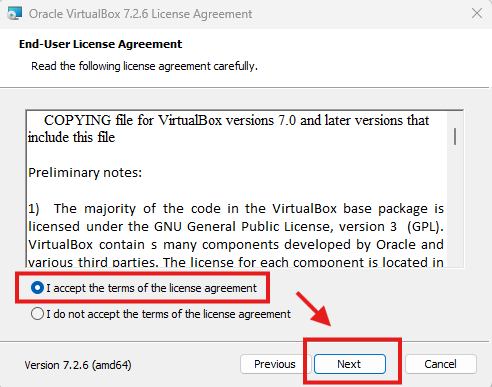
5. Perform the following tasks on the Custom Setup screen.
- You’ll find and see a list of features the wizard will install. In this example leave all the selection default.
- Browse and choose the location where you want to install the VirtualBox. You can use the default installation location if you don’t want to change it.
- Click the next button when you are done.
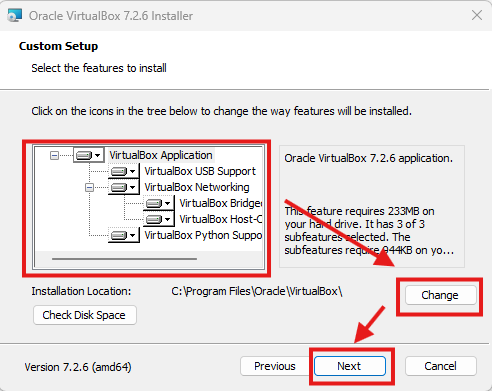
6. On the next wizard screen you will see a list of the shortcuts and file associations the installation will creating. Check or uncheck the items that you like to include or exclude and hit next. In this example all options are checked.
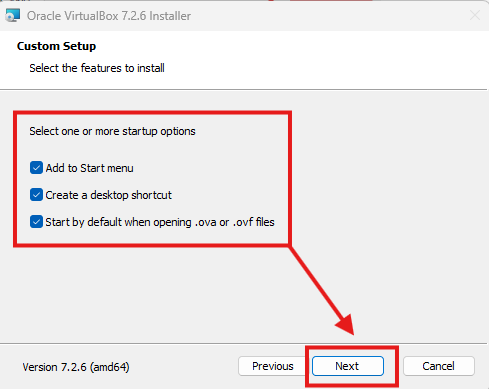
7. On the next screen, sometime in previous screen you’ll see a warning about networking. Setup will also install a virtual box network adapter which may cause network connection to disconnect for a moment. Click Yes to continue to installation.
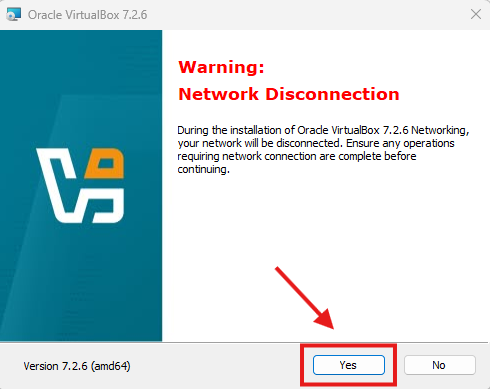
8. Finally you are now on a installation screen. It will ask you to confirm if you really like to install the VirtualBox. Click on install to install VirtualBox on Windows 11.
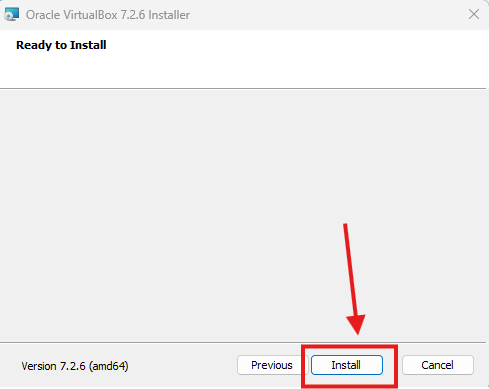
9. Now it will start the installation process, but it takes several minutes depending on your system speed. Click finish button to close the wizard after the installation process ends.
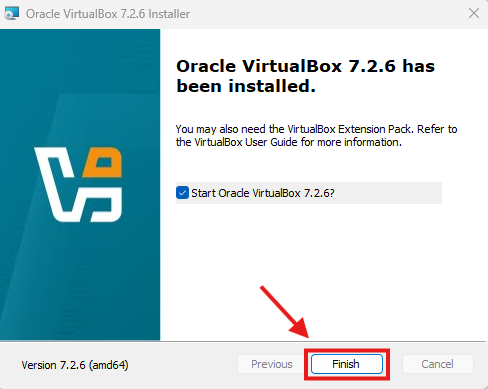
Congratulations, you have successfully installed VirtualBox on your Windows 11 system. Now you can easily create a virtual machine and run any supported operating system in VirtualBox. You can install another windows 11 inside your OS which is cool.
Create First Virtual Machine
After the VirtualBox is Installed on Windows 11 you can create your first virtual machine (VM) now.
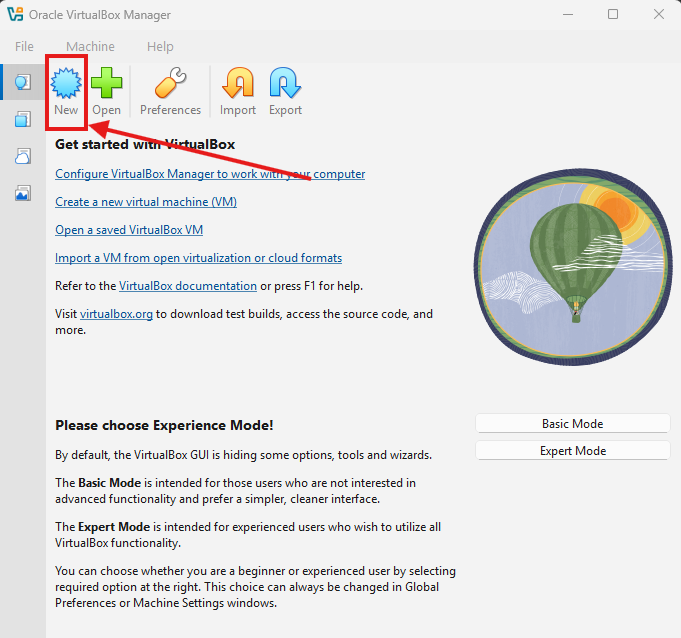
1. First click on the new button at top left corner of your VirtualBox window. This will brings up a create Virtual machine wizard. This wizard helps you to config your new VM with new settings and options.
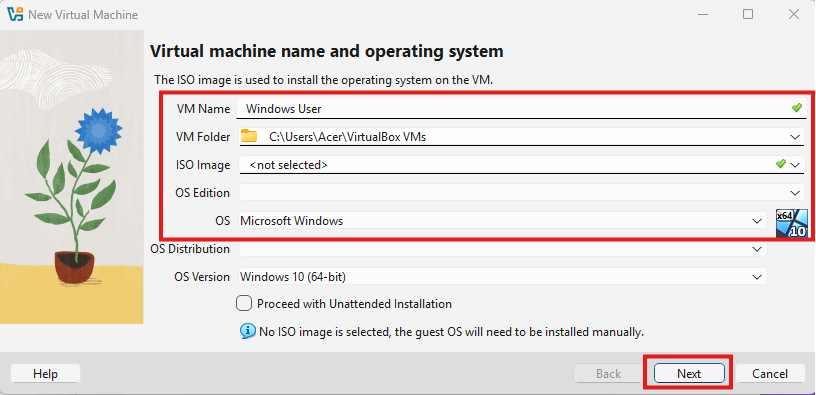
2. Configure the following options now.
- Name: Give your name for your VM. You can put any name you like.
- OS Editon: VirtualBox offers many different types of OSes. Select the operating system you want to install from the drop-down menu. This tutorial selects Windows for the type.
- Version: Select the version of the operating system you want to install from the drop-down menu. This tutorial goes with Microsoft Windows, so the version is Windows 10(64-bit).
- Click Next to continue.
3. On the Memory size page, set how much memory (RAM) your VM will have. You can choose between 4MB (this value is too low for any OS) to Max size of your Physical RAM. The default is 1024MB. In this example i am putting 4096 MB.
Generally, 4096MB is a good starting point for a Windows VM, while 2048MB for a Linux VM.
Be careful while allocating the memory. do not allocate very high memeroy to VM because it will lag your OS if you do this. so give a correct RAM to the guest os or VM.
On the Number of CPU you can set how many CPU that your VM can use, you can give 50% of your total CPU to VM. But here in this example i am only giving 1 CPU for this Virtual Machine.
On the Disk size, set how much Storage your VM will have. You can choose between 20 GB to 50 GB as per your requirements. the default size if 50GB for Windows Os. So in this example i am putting 50 GB storage.
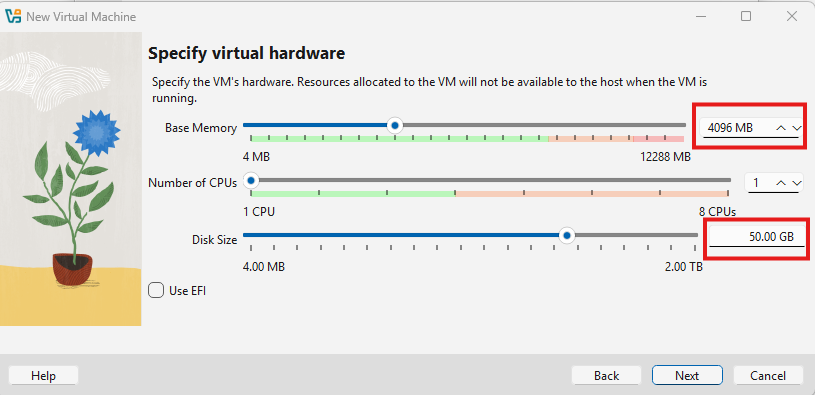
Click Next to continue.
4. In final you have to click finish after the Virtual Machine is successfully created. It will show you a details of VM which is created right now as shown.
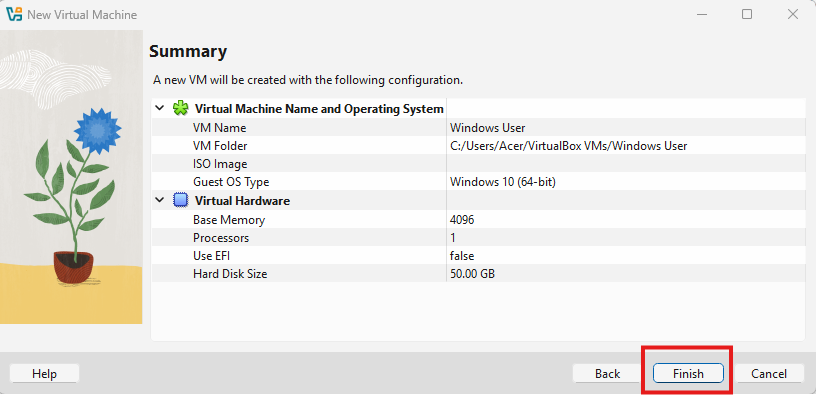
Click finish to end the creation process.
Now you have successfully created your first Virtual Machine using VirtualBox in windows 11. Thats nice right. You can see your new virtual machine listed at the left side of your VirtualBox.
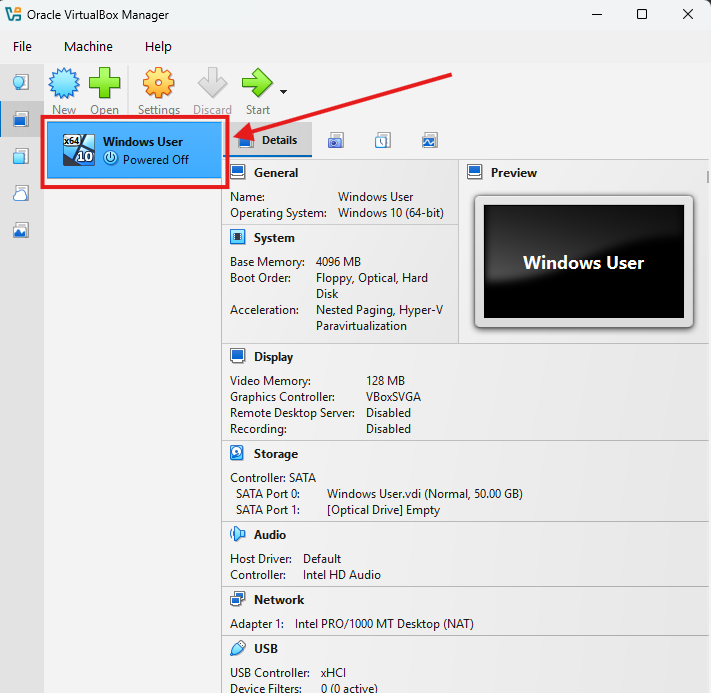
Virtual Machine created
Conclusion
In conclusion this post guided you how you can install VirtualBox on Windows 11 and create your first virtual machine. You can follow these basic steps to download, install and create first machine in your system.
Now you can have the basic knowledge and understanding of VirtualBox, you can easily do experiment with other features of VirtualBox. If you want me to do how to install OS in VirtualBox just tell me in the comment section below. I will post new article that will guide you how you can easily install any VirtualBox supported OS easily.